How to use Forex Expert Advisors
Recently, most traders have been shifting to automated trading, either by custom-designing various  advisors or simply downloading and customizing experts from our website.
While traders are typically familiar with how to install an advisor in a trading terminal, most beginners don't even understand the basic principles of a trading terminal, let alone how to install experts and their basic settings.
To install a Forex advisor, you need to download it from our website in the Advisors. This section includes both demo versions and completely free robots.
Next, launch your trading terminal and use the File menu to access the data directory. You can see an example in the image:
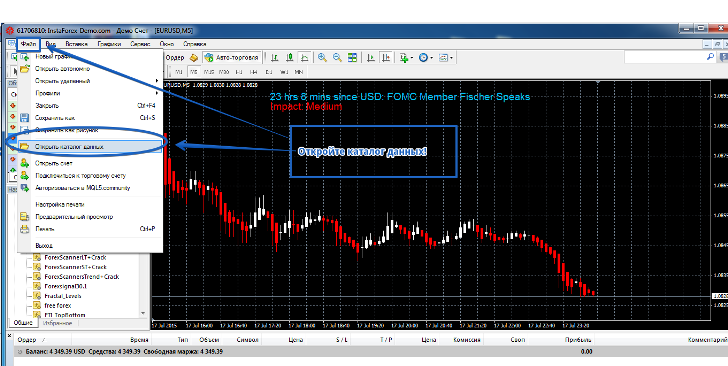
Then, in the directory that opens, go to the Expert folder and paste the downloaded file. If the Expert Advisor is based on an indicator, simply drop it into the indicators folder. Owners often try to protect their work, so you may find a file ending in .dll along with the Expert Advisor. This file is a library, so you also need to copy it and paste it through the data directory, but into a folder called Libraries. If you copied all the files, it should appear in the list of Expert Advisors after restarting the Expert Advisor.
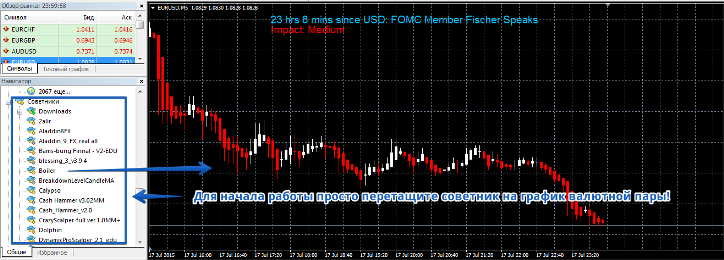
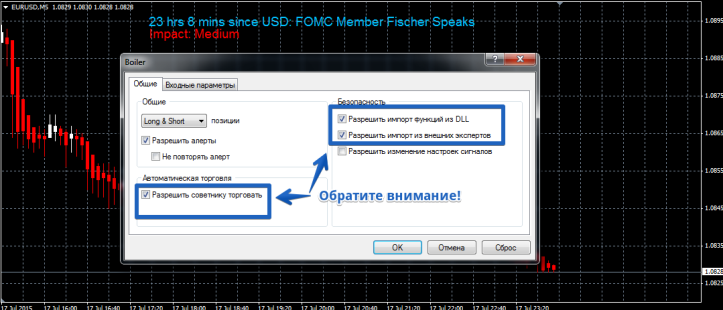
To start using an expert advisor, simply drag it onto a currency pair chart. Once you do, the advisor's basic settings will appear. Make sure the checkboxes in the General tab are in the following order:
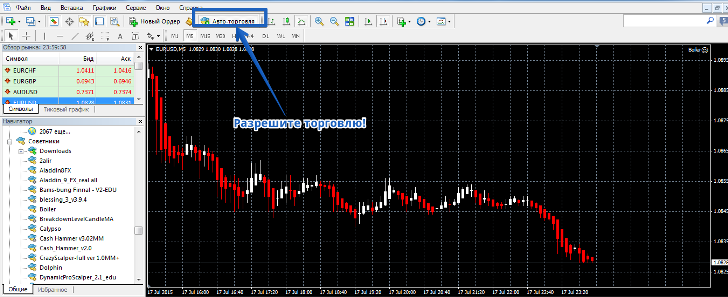
Once you've added a trading expert, you need to find the icon on the toolbar and enable it to trade. You can see an example in the image:
Sometimes, an Expert Advisor won't start trading. This is because autotrading is disabled in the trading terminal's main settings. To enable it, go to the "Service" tab and open the "Settings" menu. Among the various options, find the "Expert Advisors" tab and check the boxes as shown in the image below:
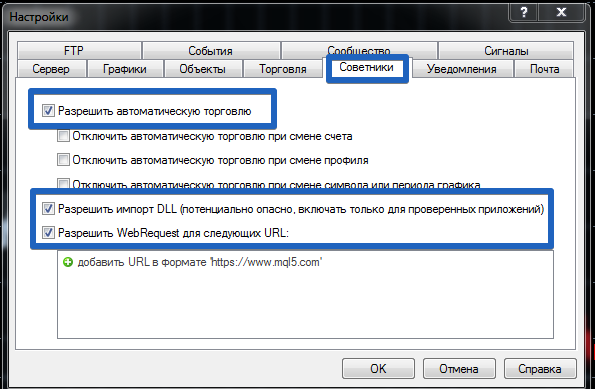
After these settings have been made, the expert advisor should begin trading. Note that this last step only needs to be done once. Now I'd like to discuss the basic settings found in almost every expert advisor.
The first thing present in almost any expert advisor is the trading lot settings. In the expert advisor settings, this is often displayed as Lot or the abbreviated version, LT. By adjusting the lot line, you can either increase or decrease the trading lot the expert advisor will use.
Thus, you can influence the risks in almost any expert advisor. Also, every expert advisor has profit and stop order settings. In the settings, these are most often designated as Take Profit and Stop Loss, and also more commonly referred to as TP and SL.
These parameters are often optimized for each trading instrument, as the price ranges vary across different pairs. For example, while a stop loss is typically short on the pound, it's much larger on the euro/dollar pair, as the price range is greater there.
Almost all expert advisors also have a Magic line of settings containing a code. This is necessary to prevent the expert advisor from confusing its trades with positions opened manually. If you're using a martingale-based expert advisor, it always has settings for multiplying the trading lot, designated as LotExponent and Multiplier. These are probably the basic settings found in any expert advisor. Now let's look at how to configure them.
To get started, log in to the strategy tester. In the tester menu, check the box next to optimization. Next, go to the expert advisor settings and, next to the "Start" column, enter the minimum parameter you'd like to optimize from and the maximum you think is acceptable. Then, go to the main tester window and click "Start." After optimization, the trading terminal will display possible settings that would yield a profit.
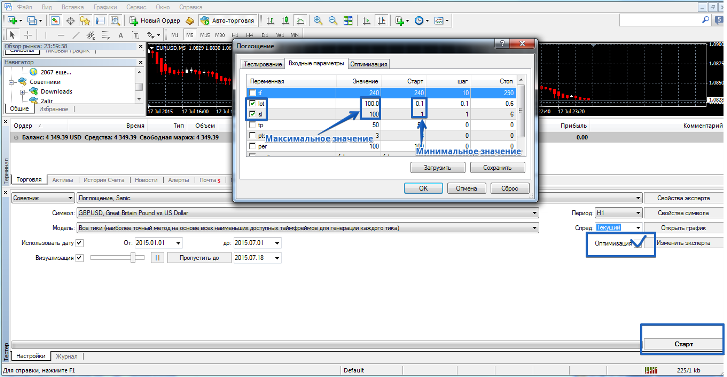
After reading this, you might think installing the Expert Advisor is a labor-intensive process, but in reality, it only takes about 5 minutes. Unlike installation, optimizing the settings is more labor-intensive. However, remember that your success depends on the right parameters you choose. Thank you for your attention, and good luck!