Stop loss indicator.
Setting a stop-loss order has always been a key task when opening a new trade, but calculating its size isn't always easy for beginner traders. This tool was developed precisely for this category of traders.
There's no need to emphasize the importance of setting this order for every trade, as it's the foundation of any Forex strategy.
The stop-loss indicator automatically determines the price levels where it's most appropriate to place it. To get started, simply enter a few simple settings, and you'll have a reference point you can use when opening new orders.
Download the stop-loss indicator.
The indicator is based on historical price movement analysis, which is why one of its important parameters is the number of bars used in the calculations. It's recommended to set this value lower than the distance to the nearest trend reversal.
Setting up important parameters.
First of all, it's important to note that this tool must be installed in the "indicators" folder after downloading, otherwise the stop-loss indicator will not work.
After installation, launch the trader's trading terminal and proceed directly to the settings. To do this, click SL_BW in the "Custom Indicators" folder.
BAR – as previously noted, this is the main parameter for this indicator. The higher its value, the wider the history used to set the stop-loss.
minSL – sets the minimum stop-loss order value. This usually depends on the restrictions set by your broker and fluctuates between 10-15 points.
show_bar – show bars; true – enable.
show_info – show additional information.
Next comes the color settings for the bars; you can leave them unchanged.
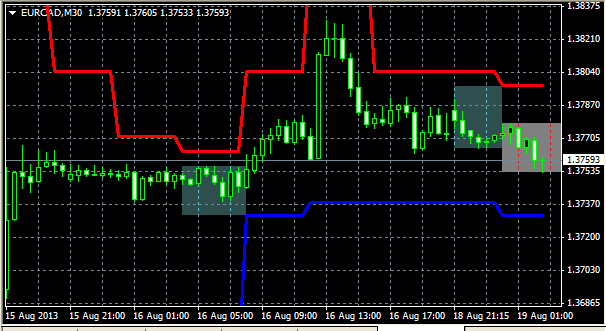
Then, go to the "Colors" tab, where you need to change the line thickness. The blue line is used to set the stop-loss when opening buy orders, and the red line is used for selling orders. It is recommended to set the width to the third position to improve visual perception of the image.
After entering all the settings, simply click OK and our stop-loss will appear on the chart. It will dynamically change and be immediately set for all timeframes. If desired, you can change the last value in the "Display" tab.