Drawdown Script: Stay informed about your account activity
Many traders focus on trading tools, from trading strategies to Forex expert advisors. However, in pursuit of the Holy Grail, foolish and absurd mistakes are often made, costing a significant portion of the trader's deposit.
For example, many don't even consider the importance of monitoring their account, believing that established profit and stop orders will always be triggered.
While such a careless attitude is forgivable if the account is solely used for manual trading, when using expert advisors and full automation, even the slightest glitch caused by a temporary connection interruption can have dire consequences.
However, not everyone can be constantly in front of their monitor to monitor account drawdowns.
Push notifications are provided in the trading terminal for this very purpose, and you can use them to monitor the situation using Forex expert advisor scripts.
It's worth noting that this robot acts as a link between your desktop trading terminal and the mobile version of the platform, where notifications are sent.
This is why it doesn't matter what time frame or chart you apply this script to, since only basic information from the entire account is tracked, not for any one specific asset.
Installing the Drawdown script
Although we refer to this program as a script in this article due to the simplicity of the functions it performs, Drawdown of the Account is actually a fully-fledged advisor that constantly monitors the situation on your account in real time.
It's worth noting that Drawdown of the Account is distributed completely free of charge, as the robot itself was published on the official library page of the MT4 trading terminal developer.
Therefore, you can install the Drawdown script in two ways, namely through the library or through the data directory.
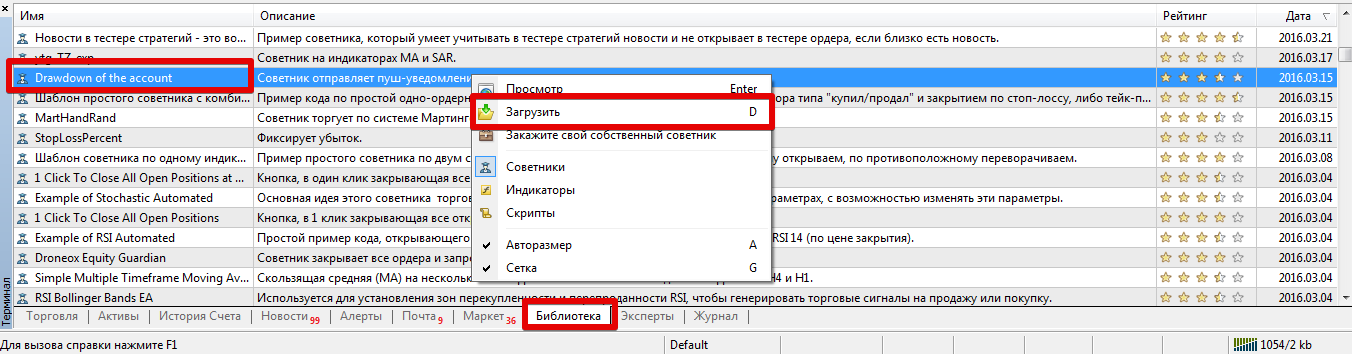
To install an advisor through the library, launch your trading terminal and open the panel called "Terminal".
The next step is to navigate to the "Library" tab, after which you need to perform simple filtering so that only advisors are displayed in the list, and not mixed with indicators or scripts.
In the list, find the advisor called Drawdown of the account and use the additional menu to download it as shown in the image below:
If installing the Expert Advisor through the library fails for any reason, be sure to use the standard installation method.
To do this, download the Expert Advisor file at the end of this article and place it in the appropriate folder in the terminal's data directory—specifically, in the folder named "expert.
" The next step after installation is to either restart the trading terminal or update it in the "Navigator" panel, otherwise the robot will not appear in the list of Expert Advisors. After updating, apply the robot to the chart.
Preliminary terminal configuration for the Expert Advisor.
To be clear, the "Drawdown" script is nothing more than a link between the trading terminal and the mobile version of the platform.
Therefore, first, to receive push notifications, you will need to download the mobile version of the platform and install it on your tablet or phone.
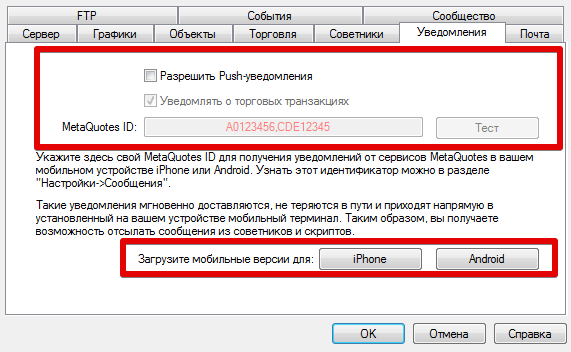
Next, you will need to configure your desktop MT4 trading terminal. To do this, go to the "Service" menu and select "Settings." In the window that appears, go to the "Notifications" tab.
In the new tab, check the box next to "Allow Push Notifications." You will also need to provide your MetaQuotes ID, which you can find directly in the mobile version of the terminal by going to "Settings" - "Messages." Without this number, push notifications will not arrive on your mobile device!
Regarding the advisor settings, there's only one variable for setting the account drawdown percentage. When this percentage is reached, the advisor should send a message to your phone or tablet.
However, it's important to understand that notifications will only be sent to the mobile version if your desktop computer is turned on and the trading terminal running the advisor is running.
Finally, it's worth noting that with the "Drawdown" script, you'll always be aware of your account activity, whether you're right next to your PC or away on business.
Download the "Drawdown" script.