Installing an indicator or advisor in a Forex terminal
This is the simplest step, as scripts don't need to be installed like standard programs. They're already  part of the trader's terminal, and installing them simply requires copying them to the appropriate folder. It's worth noting that the advisor and indicator are installed in exactly the same way, just in different folders.
The installation of an indicator or advisor is complete only when you have copied all additional program elements to the appropriate locations.
Therefore, after downloading, carefully check what is in the received archive along with the main file of the advisor or indicator.
For easier understanding, let's break the entire process down into several stages:
1. Download the program itself or its archive to your desktop using the link in the article. In some cases, the download may automatically go to your browser's "Downloads" folder. You'll then need to move the downloaded archive to your desktop.
2. If the files are in an archive, unpack them. It's best to do this in a newly created folder so they don't end up all over your desktop.
3. Determine the location of the desired folder where the copy will be made. To do this, right-click on the trader's terminal shortcut icon, and in the submenu that opens, select the last tab, "Properties.".
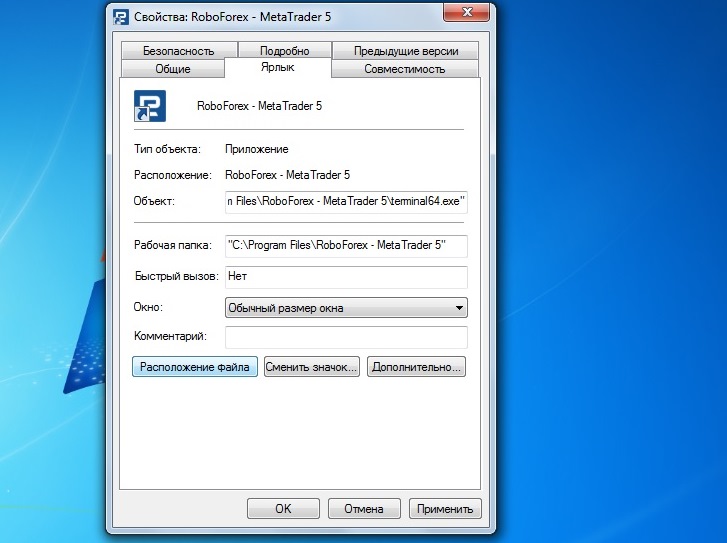
A window will open in which we select "Find object"; now you are in the folder with the installed trading platform, now we go to the "experts" folder and copy the file of the advisor itself here; it comes in mq4 format.
Additional scripts may come with the expert advisor. Copy them to the appropriate folders: templates in "templates" and scripts in the "scripts" folder. When moving an indicator, its main file is copied to a folder named "indicators.".
4. Installation is complete. Launch the trading terminal and select the desired instance in the "Advisors" tab (for indicators, select "Indicators" or "Custom Indicators"). Then, proceed to the advanced setup stage.
Drag the desired object into the currency pair chart window with the mouse. An additional settings window will immediately appear. Change them according to your requirements or leave the default settings and click "OK.".
After this, don't forget to allow the advisor to trade. You can do this by clicking the "Advisors" button at the top of the trader's terminal.
To ensure proper operation, before installing, ensure that the script you downloaded is designed to work specifically in your trading terminal. To do this, carefully read the description of the programs on the website where you downloaded them.
If you are not in the trading terminal folder, there is a folder called Indicators
Unfortunately, this also happens lately, in this case we proceed as follows:
- Open MetaEditor in your trading platform. You can do this from the "Service" tab in the top menu.
- Then, in the navigator on the left side, select the folder we need - indicators, scripts, or experts - and right-click, then select open folder.
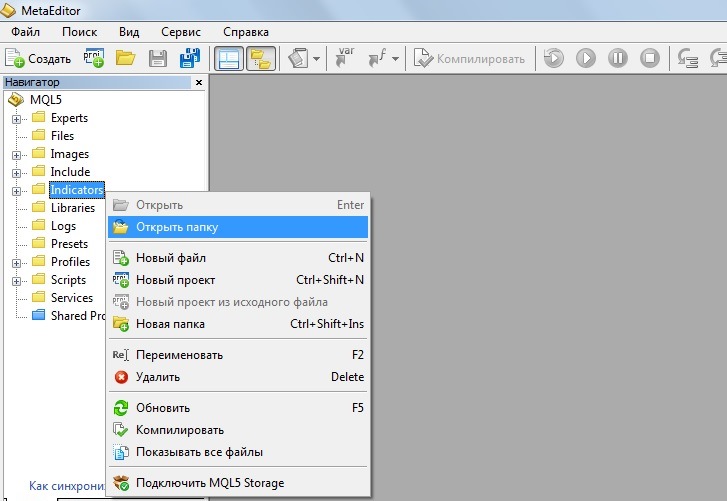
You can also install directly from the MT trading platform. To do this, click "File" in the upper right corner, then select "Open Data Folder" and navigate to the MQL5 folder in MT5 or MQL4 folder in MT4.
As a result, you can now copy the script, indicator, or advisor to the appropriate folder.
The easiest option may be to install a script available in the MQL Market. To do this, select the "Market" tab in the bottom panel of the trading platform, find the desired script, and follow the simple prompts to install it directly into the trader's terminal.