Forex Trade Screenshot Indicator
When studying trading books, almost every author advises their readers to keep their own journal. You've probably wondered why this is necessary, since the entire transaction history is stored directly in the trading terminal and can be retrieved at any time as a report.
However, it's important to understand that a diary isn't meant to preserve history, but to analyze it. We doubt any of you, a month from now, will be able to say why you opened a trade, what your reasoning was, or, simply, what mood you were in.
However, it is precisely working on oneself and one's mistakes that allows a trader to improve, refine their strategy and market entry methods, identify patterns, and also identify their own vulnerabilities.
However, despite the fact that many agree to take this step and start keeping a diary, they often do it incorrectly.
The vast majority of traders, especially older ones, keep a diary in a regular notebook or workbook, neglecting the most important element of analysis—the trading chart at the moment of trade execution. While it's possible to take a screenshot in a trading terminal, this takes time and effort, leading traders to forget.
Installing the indicator
The screenshot indicator is developed by enthusiastic programmers, so to use it, you'll first need to download the indicator file and then install it in your MT4 trading terminal. There's nothing new in the installation process, so open the data folder via the File menu in your trading terminal.
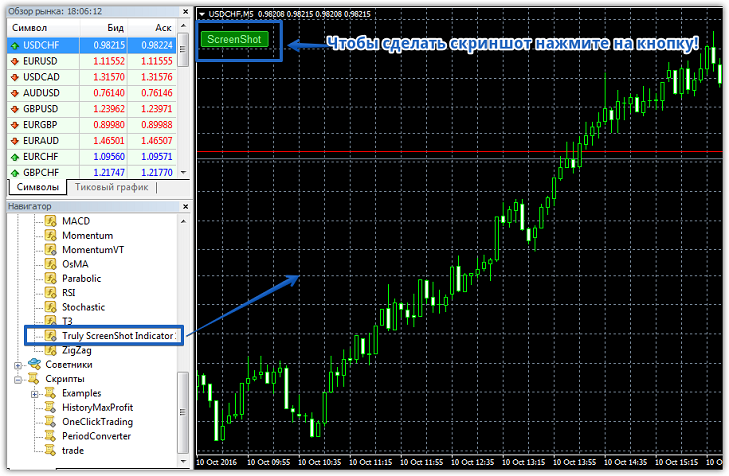
A list of system folders will appear. Find the folder named "indicators" and drag Truly Screenshot Indicator into it. To see the indicator in the terminal, simply restart it. Next, open the navigator panel, select "Indicators," and drag Truly Screenshot Indicator onto the chart of the currency pair you're trading.
Working with the indicator. Settings
Although Truly Screenshot is designed as an indicator, its operation is more like an expert advisor or script. As we've already mentioned, this indicator takes screenshots both automatically and at any time by clicking the green button in the upper left corner. So, let's explore the automatic screenshot settings.
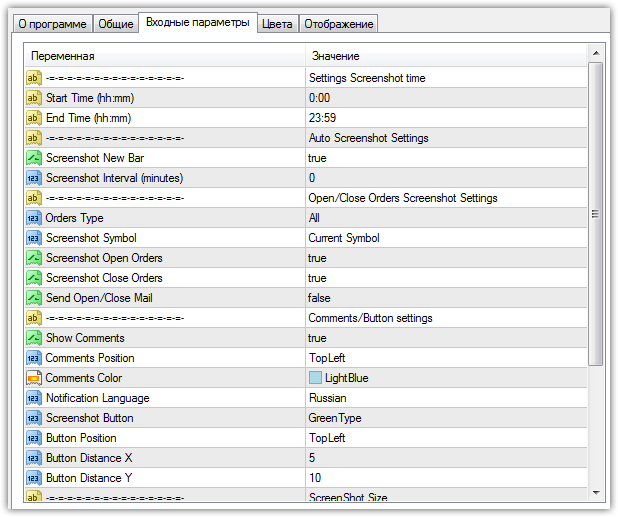
The Start Time and End Time variables allow you to limit the indicator's runtime. This feature is useful for traders who trade during a specific trading session and don't need screenshots for other periods. In the Screenshot New Bar line, you can enable or disable the indicator to take a screenshot at the opening of each new candle.
To do this, select either true or false in this line. In the Screenshot Interval line, you can specify the interval in minutes after which the indicator will take a screenshot.
The Orders Type variable allows you to select which trades to screenshot, specifically those opened manually or by an expert advisor. The Screenshot Open Orders settings line enables automatic screenshots when a position is opened, and the Screenshot Close Orders line enables automatic screenshots when a trade is closed. You can also enable email notifications in the Send Open/Close Mail line when a trade is opened or closed.
The ScreenshotSymbol line allows you to enable screenshots for both the currency pair the indicator is running on and other currency pairs where the indicator isn't present. For example, if you want the indicator to take screenshots only on the chart where the script is installed, select Current Symbols. To apply the screenshot feature to all currency pairs, select All.
Finally, it's worth noting that Truly Screenshot Indicator makes journaling much easier, as all your trades will be captured without your intervention. All screenshots taken by the indicator can be found in the Files folder.
Download the Forex screenshot indicator.