Script for transferring history to a chart
Investing in the forex market is extremely risky, and even the enormous potential returns are often dashed by the reality of the managers' efficiency and stability.
How can you tell if a manager can trade effectively?
What is their strategy, and most importantly, are their indicators inflated by the clever use of risky capital managementthat produce a beautiful profitability chart, but then suddenly and instantly lose money?
To answer this question, you need to thoroughly study the trader's trading principles, and additional programs for the trading platform – Forex scripts – can help.
The StrategyViewer chart history transfer script is an auxiliary program for your MT4 that allows you to extract history from an Excel report, which is often downloaded from various copy trading services and PAMM platforms.
It's worth noting that the script was developed specifically to extract trade histories from MetaTrader's signal copying service, which are still available directly on your platform.
The script does not open positions and is an auxiliary development that allows you to more clearly see how the manager conducts trading.
Installing the StrategyViewer script
The StrategyViewer script performs very specific and focused tasks that are primarily of interest to investors familiar with forex trading, or to investors who trade independently and understand the entire trading process.
That's why this script didn't appear until 2018, but after its appearance, the author published it in the official MT4 developer library.
Thus, you can install the script in two ways, namely either through the library or through the data directory according to the standard scheme.
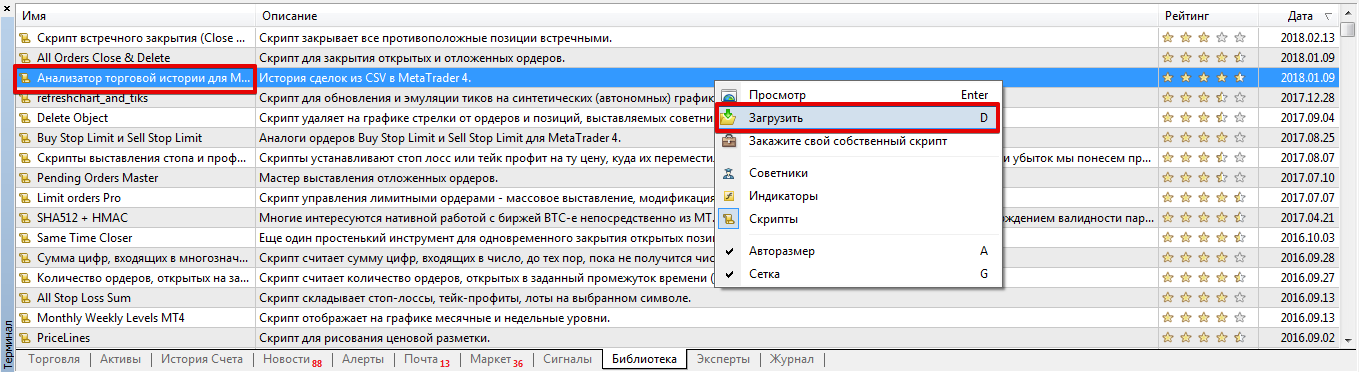
To install a script through the library, launch the trading terminal and go to the "Terminal" panel, where your balance information is displayed. Then, open the "Library" tab and perform a simple sort to display only scripts in the list.
Find the script for transferring history to a chart in the resulting list and load it using the additional menu as shown in the image below:
If you encounter difficulties installing via the library, you can use the standard method. To do this, download the script file at the end of the article and place it in the appropriate folder in the terminal data directory, specifically the "Scripts" folder.
After installing using either method, you must refresh the trading terminal in the navigator panel or restart the trading terminal.
Using the script to transfer history to a chart:
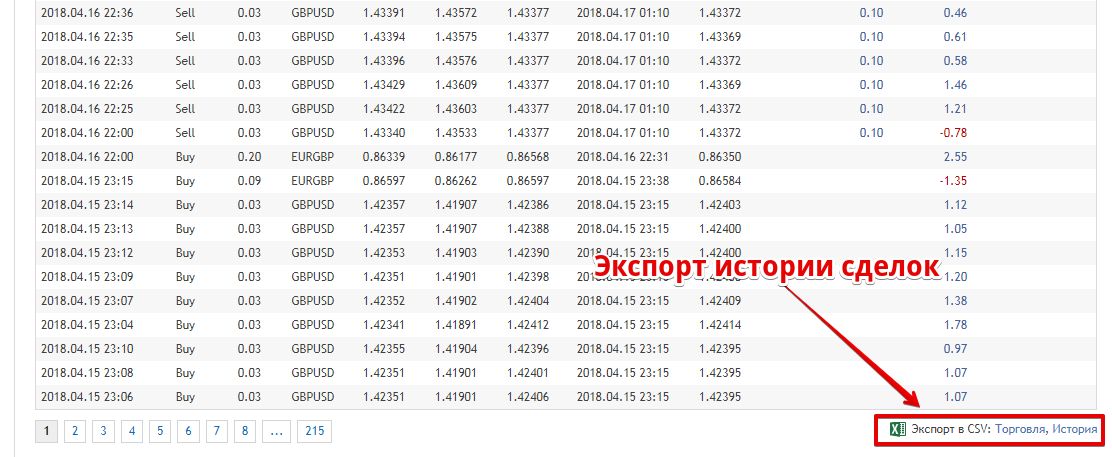
To transfer position history to a chart, you first need to obtain the position history in CSV format.
For example, in the MT4 copy trading service, you need to scroll to the end of the manager's general information and, if the history was open before connecting, download it as shown in the image below:
The next step after downloading is to rename the report file to statement.csv.
Then install it exactly as you would a regular script, but place the file in a folder named "File" in your data directory.
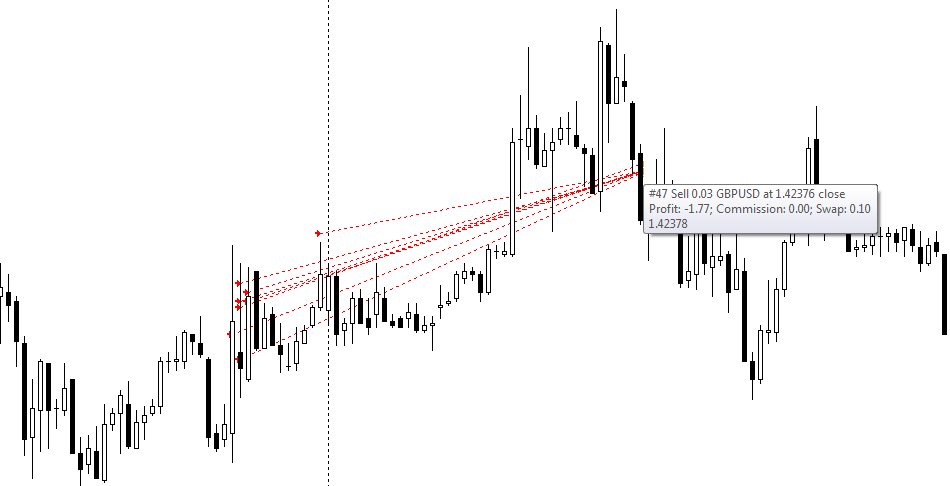
After installing the downloaded report file, simply apply the script to the chart. It will then display trade markers for the currency pair the manager is currently trading on. This will appear on the chart as follows:
In conclusion, it's worth noting that the history transfer script allows for a more in-depth analysis of your manager's or signal provider's trading. This allows
you to understand the trading principles and strategy, and, most importantly, draw conclusions about the trader's discipline and whether they're worth investing in.
Download the history transfer script.