Price Movement Speed Script
When analyzing the currency market, it is necessary to pay attention not only to characteristics such as trend, flat, and price movement direction, but also to its speed on Forex.
This is primarily due to the speed of price movement at a given moment. So, if you are trading on the news, the speed of reaching the stop order and profit will be significantly different than when a transaction is opened with the same goals and risks, but during a calm time.
The price movement speed factor can directly influence the efficiency of your open trades, because even experienced traders They say that a deal is considered successful if it goes into the black in the first few seconds and doesn't stay the same.
Installing TickSpeed in MT4
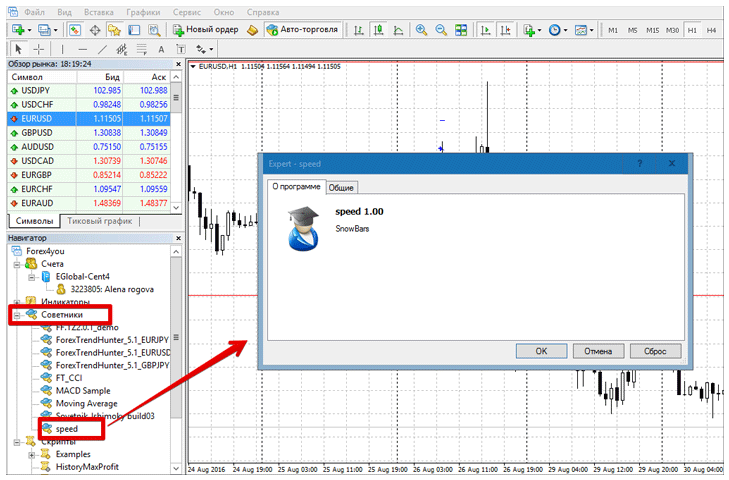
To install TickSpeed, scroll to the end of the article and download the advisor itself. Next, access the data directory via the File menu.
Next, find the "expert" folder and copy the file into it, then restart the trading platform. TickSpeed will appear in the Expert Advisor list. To start measuring speed, drag the Expert Advisor onto the chart of the currency pair you want to trade.
Working with TickSpeed data
When you apply the Expert Advisor to a chart, you won't see any graphical data on your screen, as the Expert Advisor generates a special report as an Excel file. To access it, go to the same terminal data directory, but open the folder named "Files" instead of the one where you added the Expert Advisor.
When you open a file named "Speed," you'll see a table with six columns. Column A displays the current time, column B displays the current price, and column C displays the current time in milliseconds. Columns D and E display the price and time of the previous tick, and columns F and G display the difference in points and seconds between the previous and current ticks.
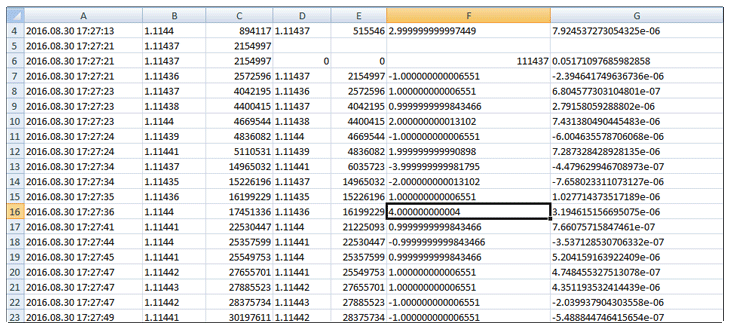
Finally, I'd like to point out that TickSpeed collects a truly enormous amount of data, as measurements are taken in ticks and milliseconds. Therefore, be sure to limit the assistant's runtime or regularly delete the file after analysis, as it can fill up all the disk space on your computer in a matter of days.
Download the TickSpeed script