Aroon indicator.
Price movement occurs only due to the actions of two categories of traders in the market, which form supply and demand.
Buyers are actively opening buy deals, thereby creating demand, and sellers are placing orders for sale, increasing the supply of currency on the forex market.
It is the predominance of a particular category on the market that forms the main trend towards which transactions are usually opened.
This is why, when analyzing the market, it is very important to determine the dominant crowd, and it is very important to consider the category of sellers and buyers both simultaneously and separately.
This can be achieved in only two ways: by reading the order book, which is impossible in the Forex market, or by using technical indicators.
One such indicator that tracks both sellers and buyers in the market is Aroon.
The indicator is a universal tool, and with its help you can not only analyze the crowd and determine entry points, but also determine market flat.
The indicator can be used on any currency pair and time frame, and to ensure you don't miss a signal, it features an audio alert and email notification.
Installing the Arun indicator
Despite the fact that the indicator was developed over 20 years ago and is widely popular, it is not built into the MT4 trading platform by default, both in the stock market and in Forex.Therefore, in order to use it, download the indicator file from the link and then install it on the MT4 trading platform.
The installation procedure follows the standard procedure: after downloading the indicator, you need to copy its file to the appropriate folder in the terminal's data directory.
To open the data catalog, launch your platform and click the "File" menu in the upper left corner. A list of options will appear, including "Open Data Catalog" and launch it.
Once you open the directory, you will see a list of system folders. Among them, find a folder called Indicators and drop the Arun indicator file into it.
In order for the terminal to see the installed file, it is enough to restart it or update it in the navigator panel.
After updating the terminal, Aroon will appear in the list of custom indicators, and to start using it, drag the indicator name onto the currency pair chart of your choice.
Practical application of the tool.
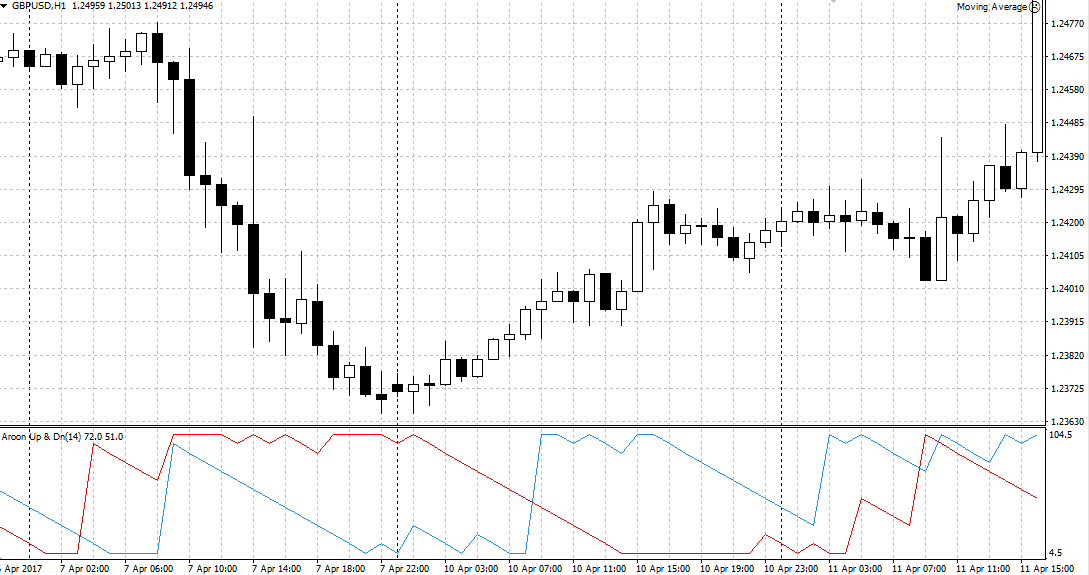
As you may have noticed, the Aroon indicator consists of two differently colored lines. The first blue line visually displays buyer activity in the market, while the red line depicts seller behavior.
When using the Aroon indicator, it's crucial to analyze the lines' positions. If the blue line is at the top, buyers are dominant, while if the blue line is at the top, sellers are dominant.
The presence of two lines at the top simultaneously indicates that the market is in active competition, and the dominant side is unclear. A shift in the lines toward the center indicates a decline volatility and the possible appearance of a flat on the market.
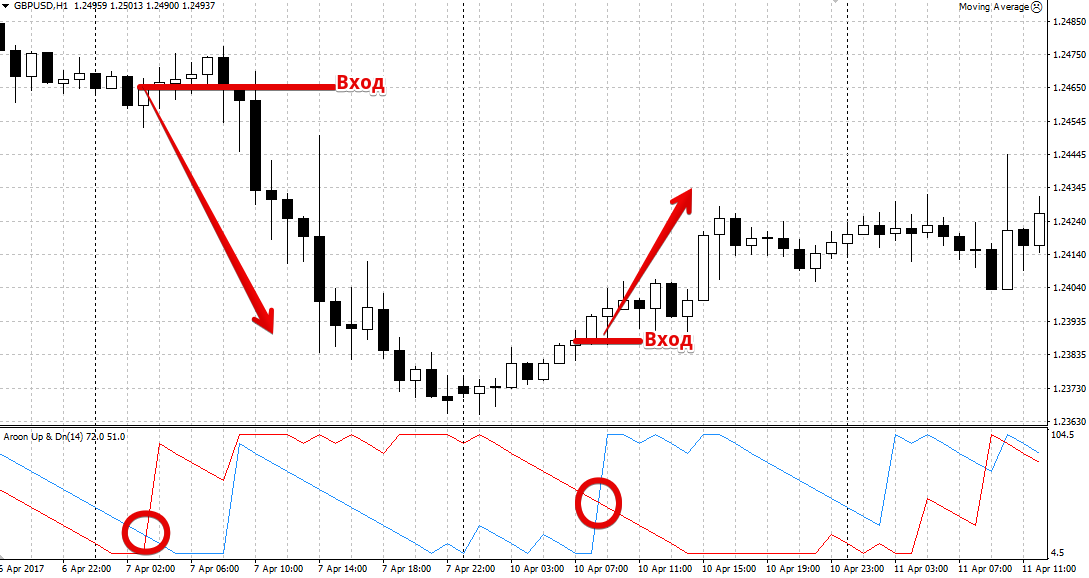
From a practical point of view, only one signal is used from the Aroon indicator - the intersection of the indicator lines, which indicates a change in one dominant group over another.
So, a buy position is opened when the red line crosses the blue line from the bottom up. A sell position should be opened when the red line crosses the blue line from the bottom up. Example:
Arun indicator settings
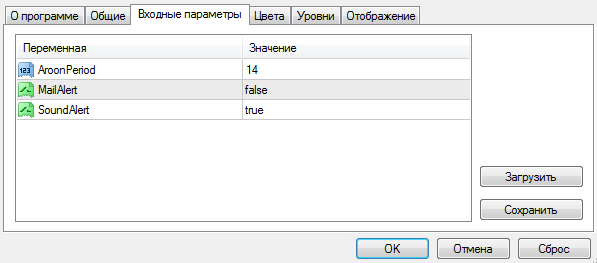
The Aroon indicator settings contain only three variables, and only one of them actually affects the indicator's performance on Forex.
So, in the AroonPeriod line, you can change the indicator's period. The Sound Alert variable enables a sound alert when a signal appears in the terminal, and the MailAlert variable enables email notification of a new signal.
In conclusion, it is worth noting that Arun is more effective when used on older people time frames.
It is also important to remember that any indicator alone will give false signals, so it would be a good idea to use additional filters when using it.
Download the Arun indicator.