Advisor Builder – Ensed Cor
Modern trading conditions make it possible to significantly simplify and automate the Forex trading process.
The emergence of various exchange terminals, and especially the series Meta Trader It allowed us not only to conduct trade via the Internet, but also to create our own software products, including full automation of trading by creating robots.
However, implementing one's own ideas requires a trader to either have programming knowledge or a large wallet to pay for the services of programmers.
Naturally, this couldn't continue for long, so special advisor builders were created, allowing you to create your own trading robots.
Installing the Ensed Cor designer
The installation procedure for this designer is comparable to the procedure for installing any third-party program on your computer. Namely, after downloading the program at the end of the article, you will need to run the installation file.
The next step is to specify the installation path and start the process. After installation, the program will immediately prompt you to specify the path to the terminal data directory.
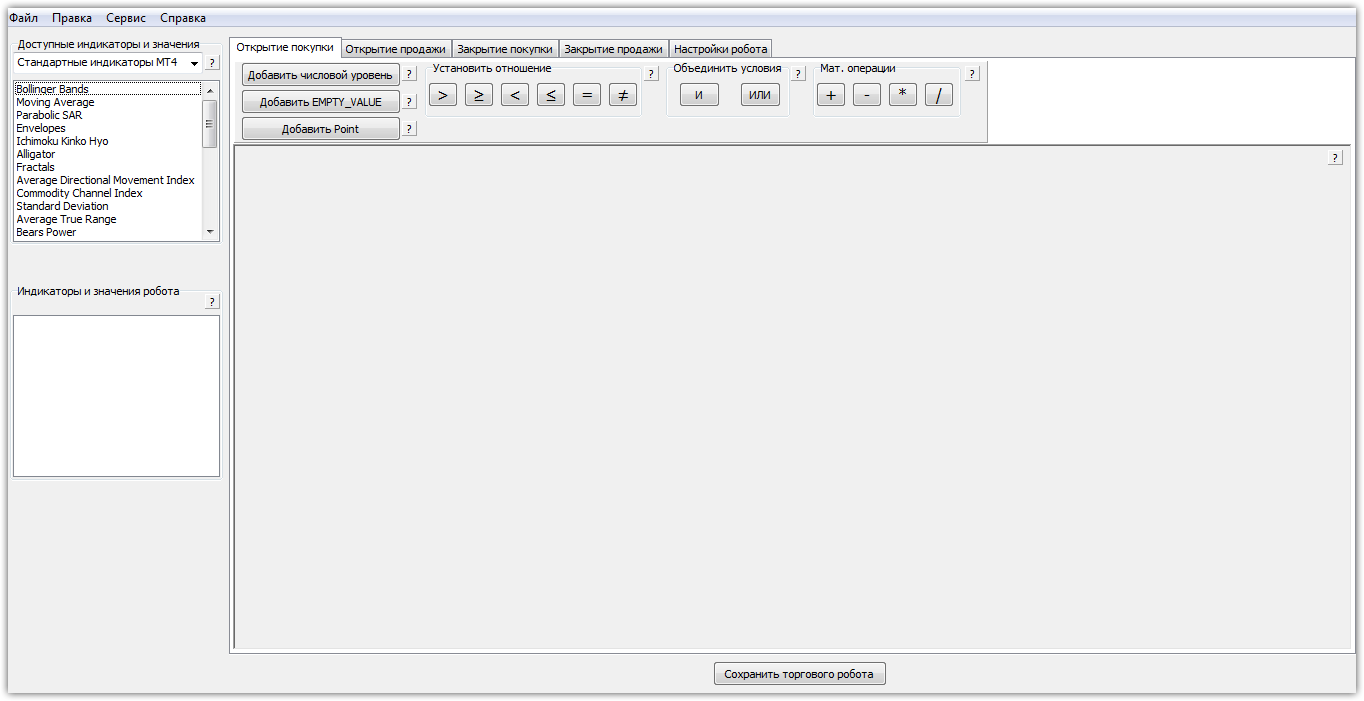
To set the correct path, go to your platform's file menu and open the data directory. Copy the top line containing the folder addresses and paste them into the appropriate line with the suggested program. After the first launch, you'll see the program interface like this:
Program functionality
As we've already mentioned, the free version is quite limited, so you can only create advisors and save them in the required format based on standard indicators for free.
If you purchase the paid version of the product, you can create your own expert advisors based on custom indicators. For convenience, the paid version also allows you to transfer variables and settings directly from a pre-saved template.
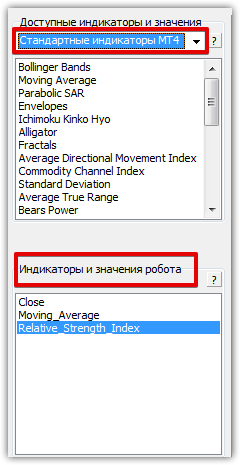
In the upper left corner is the most important panel on which the future robot is built, namely "Available indicators and values." By default, you have 30 different indicators available, such as Bollinger Bands, moving averages, standard oscillators.
In this same window, you can toggle the "Price and Volume Values" checkbox. In this section, you can select the opening and closing prices, volume, and the high and low prices. All of these values are essential for constructing strategies without indicator-based strategies.
Below the "Available Indicators and Values" window is a window called "Robot Indicators and Values." This special window displays the variables and indicators you'll apply to the workspace when creating a robot.
Directly at the top, you'll see five tabs: open a buy, open a sell, close a buy, and close a sell. In each tab, you'll need to specify the conditions for opening and closing trades.
The first four menus on the panel offer a number of special options, such as comparing variables, adding numeric levels, adding special conditions, adding point values, and performing simple numerical operations. The panel's appearance can be seen below:

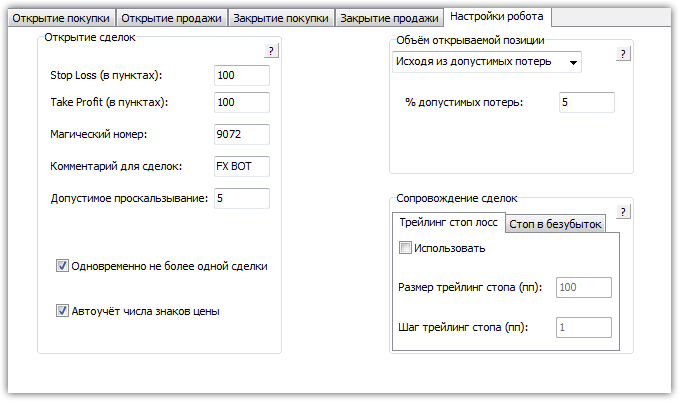
After working with the robot's conditions, it's important to make final adjustments in the "Robot Settings" panel. In this tab, you can set profit and stop order values, specify slippage, define a special code for recognizing your orders, and add comments.
This window also provides the option to enable martingale. However, I would like to warn you not to confuse this martingale With averaging. When martingale is enabled, the advisor will close positions based on a stop order, but each new order opened based on a signal will be double the lot size.
When enabling martingale, do not forget to set the minimum and maximum lot.
You can also enable the function in the final window trailing stop and without loss. To enable the trailing function, check the "Use" box and specify the trailing size and step.
To enable the no-loss function, go to the corresponding tab and set the profit value in points in the “Profit for installation” line.
In conclusion, I would like to note that the Ensed Cor constructor, even in free mode, allows you to create complex advisors without any programming knowledge, since the interface is visually clear even at first glance.
In the next article, we'll create a simple Martingale-based advisor together with you and clearly demonstrate how the program works.
Download the Ensed Cor designer