QuoteRoom
When creating your own trading strategies and expert advisors, testing is a key component. However,  few of us typically have a complete price history, and even downloading quotes through MT4 will only yield a 90 percent accurate result, not the required 100 percent.
For this reason alone, most indicators and expert advisors produce completely different results in a preliminary test than in real trading.
What do you expect? If an indicator or strategy is created using unreliable data, how can it possibly be as profitable as in a test? Furthermore, there are numerous additional trading programs that are simply useless without a reliable price history.
The importance of complete historical data is invaluable for those who use additional applications and constantly analyze price movements based on past data.
QuoteRoom allows users to receive up-to-date, real-time quotes and save them as text files and other files for use in additional applications. In addition to this functionality, the program provides reliable quotes that will be automatically downloaded from the server even if the connection is lost or the program is shut down.
The program can also serve as a source of online quotes for well-known products such as TradeStation, Omega Research ProSuite, and Equis MetaStock versions 6 and 7.
Installing the program is very simple, as the installation process is no different from installing a game or any other application on your computer. To begin installation, download the program at the end of this article and, when launching, specify the path to the program.
To use QuoteRoom's full functionality, you will need to register through the program by entering your password, email, login, and opening a demo account. After launching, you will see three windows, as shown in the image below:
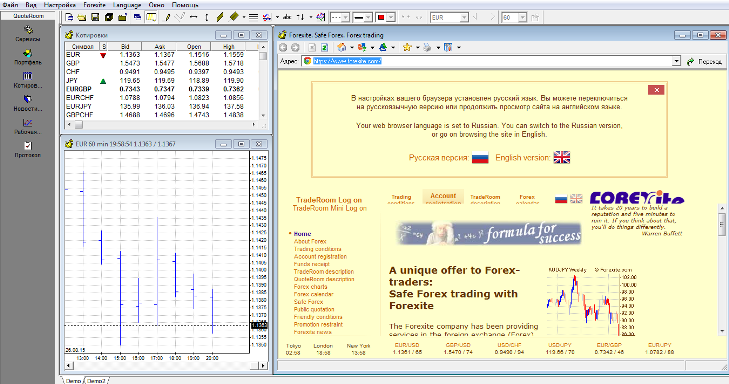
In the main panel on the left, you can view the quotes list, portfolio, news, and workspace. Opening the Services menu will reveal a list of modules responsible for specific functions. Here's a brief overview of the main services:
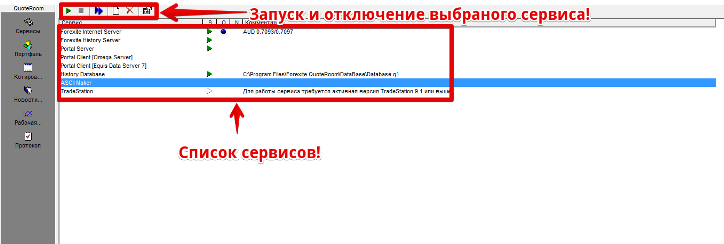
1. Forexite Internet Server – this service fetches quotes from the server and displays them as a chart. This service also provides access to current news and economic indicators in Russian.
2. Forexite History Server – this service automatically downloads quotes in the event of a lost internet connection or other technical failure.
3. History Database – this module stores and collects quotes in a specific database on the company's server.
4. ASCII Maker – this service allows you to download quotes for the required period in a test format, which can be used in most trading programs (especially simulators).
5. Portal Server – this service provides quotes for programs such as TradeStation, Omega Research ProSuite, and Equis MetaStock.
All these services can be started and stopped using the player-like buttons. You can also automatically enable services based on the tasks you need to perform. An example of enabling and disabling services, as well as a list of them, can be seen in the image below:
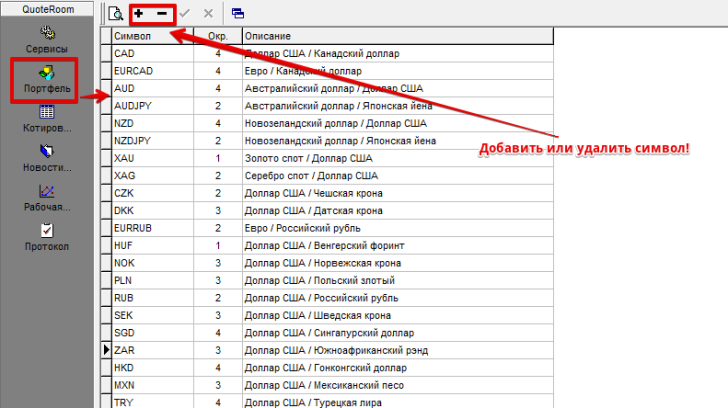
If you access the portfolio menu on the main panel on the left, you'll see a list of instruments (currency pairs, etc.) that you can edit, delete, or add new ones.
Next to each symbol, you'll see a symbol definition; for example, NOK stands for the Norwegian krone. You can see the list of available instruments in the image below:
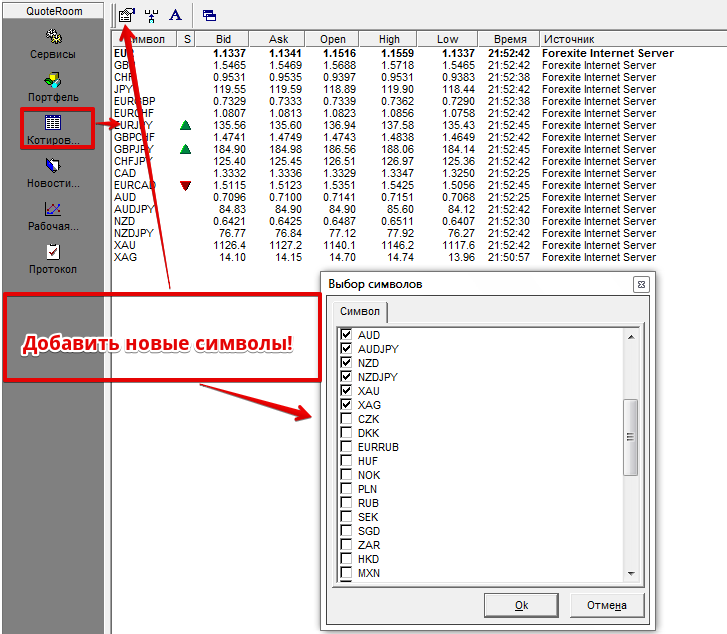
Opening the "Quotes" menu will reveal a list of currency pairs, including their opening price, bid and ask price, minimum and maximum, and the source of this information. You can add or remove specific currency pairs, which you can then view as charts and use technical analysis tools.
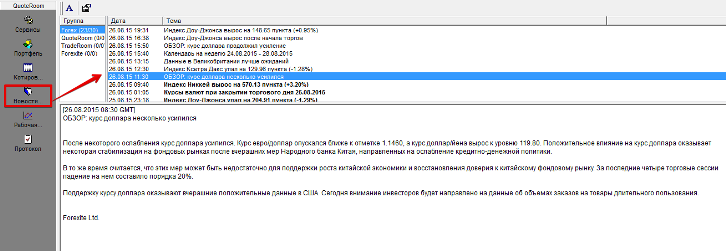
A notable additional feature of the program is the "News" menu. Opening it displays a list of released news for the instruments specified in the settings, with the specified time. Furthermore, you can specify the time period for which news should be retrieved and the number of days for which to save it.
This useful feature will help you always remember which fundamental factor was driving the price at a given moment. In addition to the standard news, the window also displays interesting analytics and forecasts from leading experts.
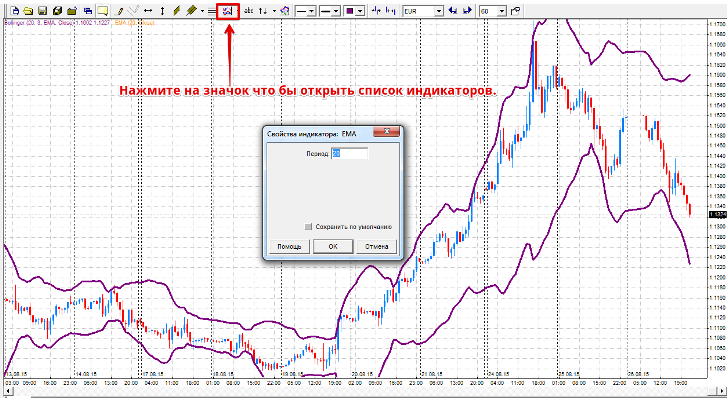
In addition to the above functions, you can view the chart of any currency pair. The chart workspace is very similar to the MT4 trading terminal, so you'll find it easy to navigate. You can change the chart type from bars to candlesticks or lines, and set any time frame, just like in MT4. For technical market analysis, the developers have implemented eight indicators, three of which are types of moving averages.
Available indicators include RSI, MACD, Stochastic, EMA, SMA, WMA, Bollinger, and ADX. To add an indicator to the chart, click the "Indicators" icon on the top toolbar and select the desired indicator from the list. To add an indicator, click on the chart, and a settings window will appear, allowing you to change the period, color, and more.
The developers have also integrated standard graphical analysis tools, such as Andrew's Pitchfork, Fibonacci grids, horizontal and vertical lines, trend lines, highlights, and arrow marks. In the top "Forexite" tab, you can also view the weekly events calendar and interest rate information.
In conclusion, QuoteRoom is a worthy software and trading assistant that will eliminate the hassle of searching for current quotes and keep you up-to-date with current news and a variety of market analysis tools.
Download QuoteRoom.