Range Bars Script: Removing Market Noise
The difficulty of conducting technical analysis, as well as using various technical indicators, is that the chart is simply oversaturated with market noise, which makes it quite difficult to assess the current market situation.
This is caused by the fact that the chart construction we are accustomed to, be it candles or bars, is trivially tied to a time interval.
Yes, each new candle appears not because the price has covered a certain distance, but because five or fifteen minutes have passed and even the smallest price shift is recorded on the chart.
This is why, when the price is in a very narrow range, we can see a series of horizontal candles, which confuse every trader.
Due to the specifics of chart construction, price-following indicators can give a lot of false signals, since the instrument simply doesn't understand what's going on in the market flat.
The Range Bars script is a custom development that allows you to create Vicente M. Nicolelis's Range Bars charts, which are not available by default in the MT4 trading platform.
The advantage of constructing this type of chart over standard ones is that each new candle is formed not by the passage of time, but by the price passing a certain distance.
The trader can change the distance in points for Range Bars independently, and by linking the appearance of the candle to the number of points passed, rather than to time, the effect of sideways markets disappears.
Installing the Range Bars script. Launching
Although Range Bars is a script, it is implemented as an indicator that allows you to open a standalone independent chart in MT4.
To use it, you need to download the indicator and library file at the end of the article, and then complete the installation procedure in MT4.
Range Bars installation follows the standard procedure, meaning you'll need to copy the downloaded files to the appropriate folders in your terminal's data directory. To open the directory, open your trading platform and click the File menu in the upper left corner.
You will then see a list of options, among which find “Open Data Catalog” and launch it.
After launching the catalog, you will see a list of system folders, among which find a folder called indicators and drop Range Bars into it, and also find a folder called Libraries and drop the library file into it.
In order for the terminal to see the installed files, it must be restarted or updated in the navigator panel.
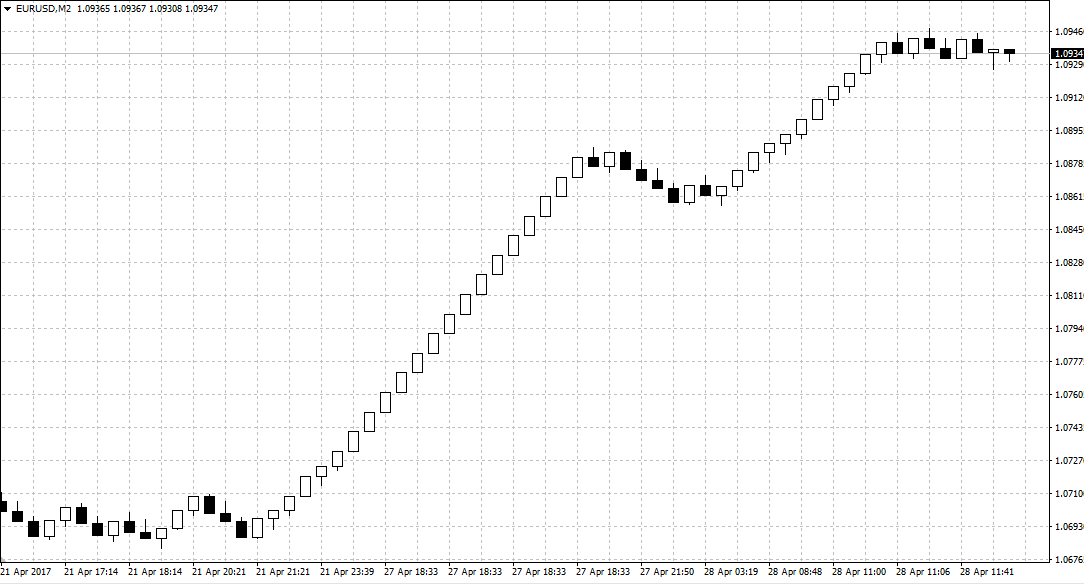
To display the Range Bars chart, you need to apply the tool to the chart of your chosen currency pair. The next step after applying the tool is to go to the "File" menu and select "Open Offline.".
A window will appear with a list of currency pairs and time frames. Find yours currency pair with M2 time frame and run it.
Range Bars Settings
It's worth noting that a huge drawback when creating this type of chart is that you will never know when a new candle will appear, which causes some inconvenience in trading.
However, thanks to the script's settings, this shortcoming can be easily corrected. So, let's take a look at the tool's basic settings:
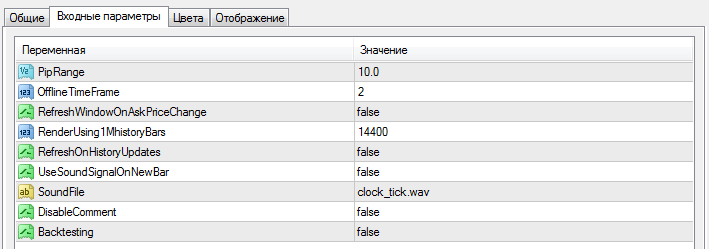
In the PipRange line, you can set the number of points the price must move before the next bar appears.
In the OfflineTimeFrame line, you can set the time frame for opening an offline chart, and in the RefreshChartOnAskPriceChange line, you can enable or disable the formation of bars based on ASK prices.
In the RenderUsing1MhistoryBars line, you can change the number of bars to generate the Range Bars chart on history. The UseSoundSignalOnNewBar variable enables or disables the sound alert when a new candle appears.
In conclusion, it's worth noting that with the Range Bars script, you can get rid of annoying market noise forever.
However, it is worth understanding that on this type of chart indicators will behave completely differently, so this should be taken into account when using such a construction.
Download the Range Bars script